Displaying the No-Show Policy Associated with Rate Plans
When users create reservations, the no-show policy associated with the rate plan is displayed in the following areas:
-
Book a Reservation screen
-
Estimated Charges section of the reservation
-
Copy Group screen
-
Bulk Edit Rate Plan screen
-
Stay Property Setup Tool
Book a Reservation Screen
The no-show policy associated with the rate plan is displayed in the Estimated Charges section of the Book a Reservation screen.
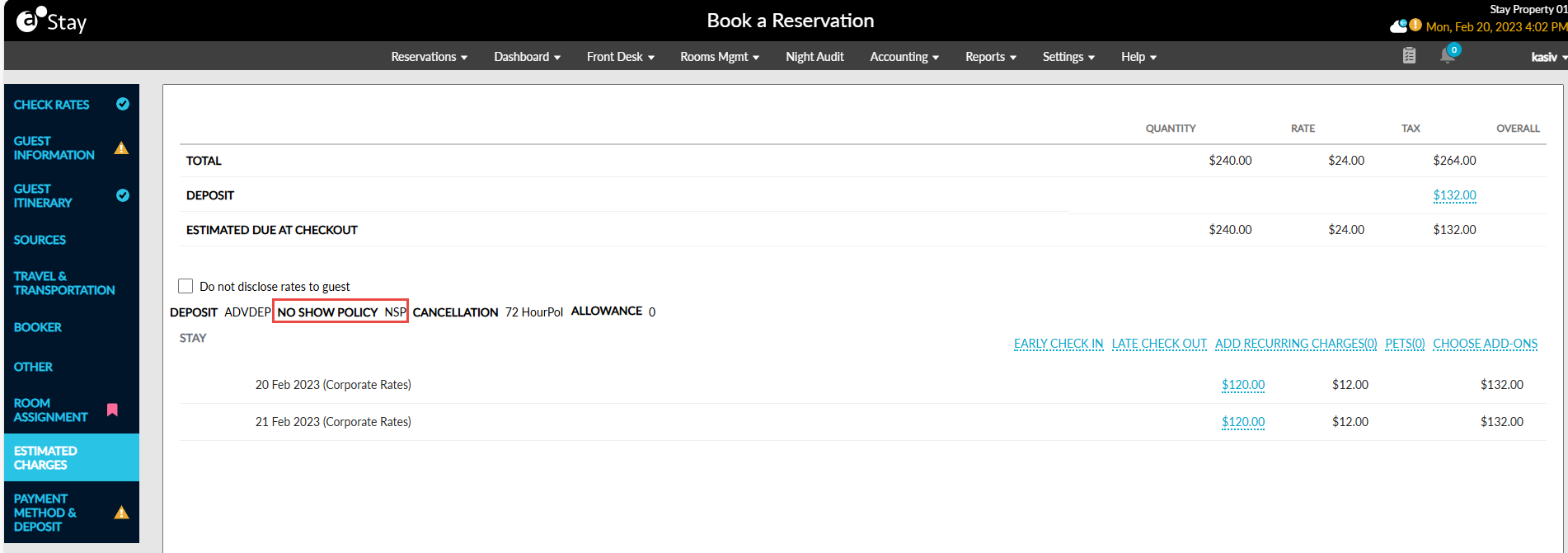
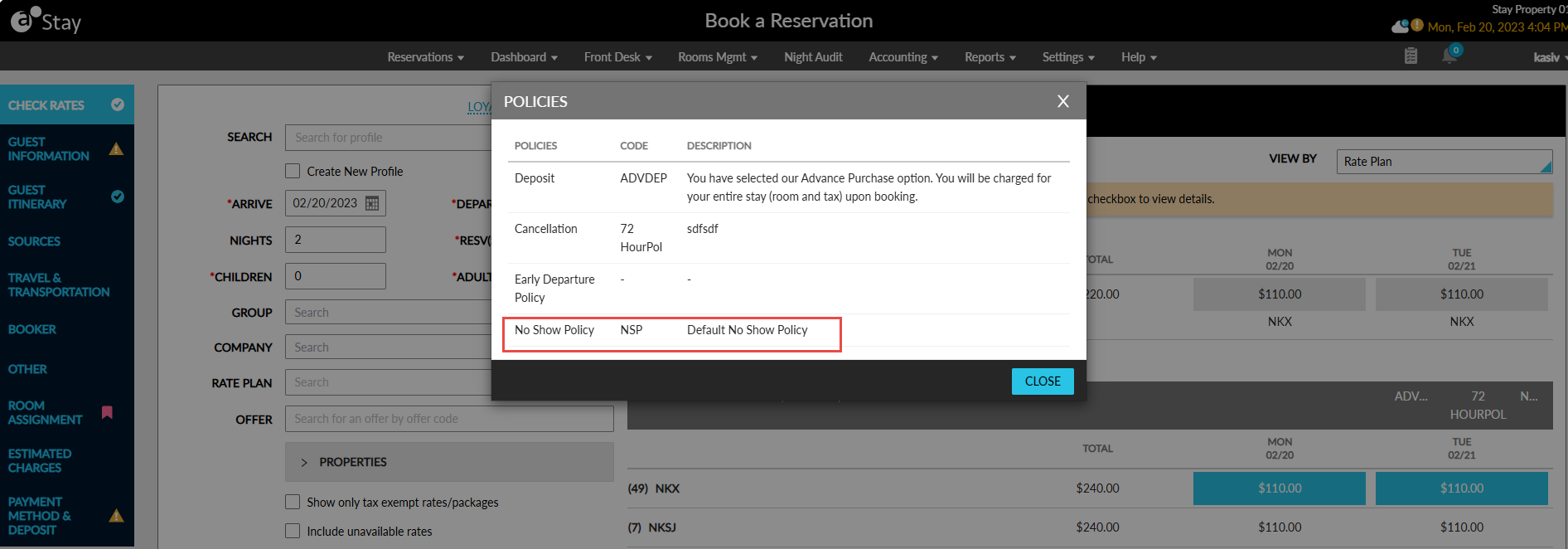
When users select a rate plan in the Book a Reservation screen to create reservations, the no-show policy associated with the selected rate plan is displayed in the Policies pop-up screen that appears when users click the Policies hyperlink.
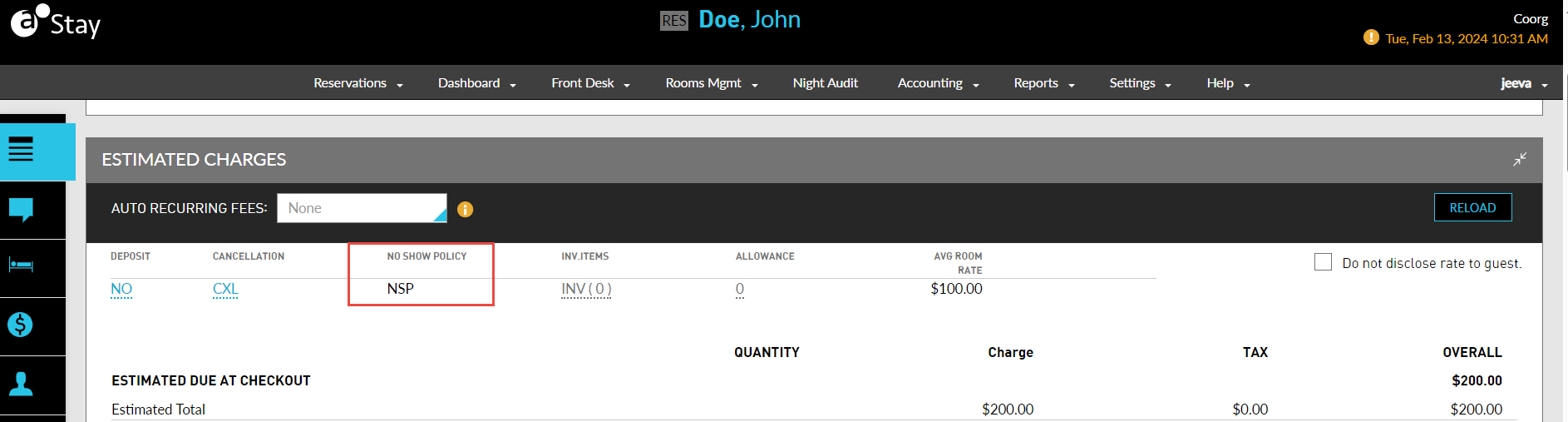
Reservations ➜ Estimated Charges
The no-show policy associated with the rate plan is displayed in the Estimated Charges section of the created reservations. When the associated policy is made inactive, the following message is displayed: This No Show Policy Is No Longer Active. Select Another Policy.
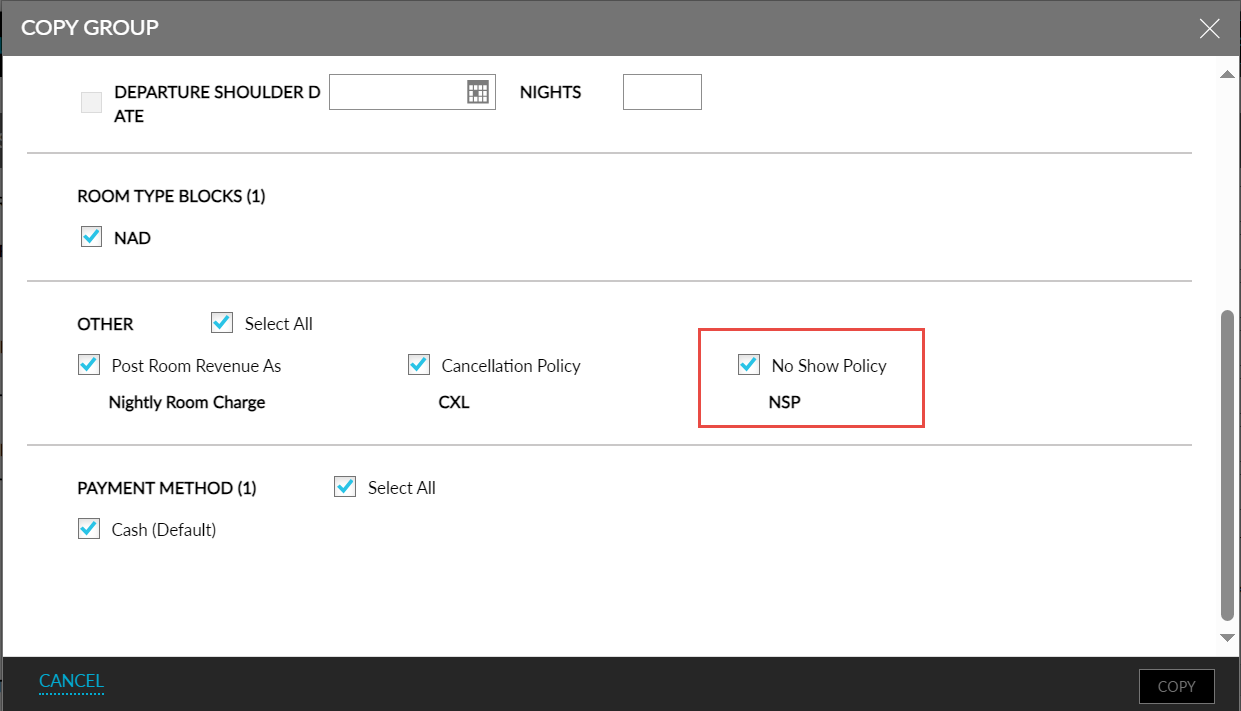
Copy Group Screen
When users copy a group, the no-show policy associated with the group is selected to be copied in the Copy Group screen (Group ➜ Copy Group).
Bulk Edit Rate Plan Screen
When users modify multiple rate plans using the Bulk Edit option (Rate Plans ➜ More ➜ Bulk Edit), users can select the no-show policy for the rate plans from the No Show Policy drop-down list in the Policies section of the Bulk Edit Rate Plan screen.
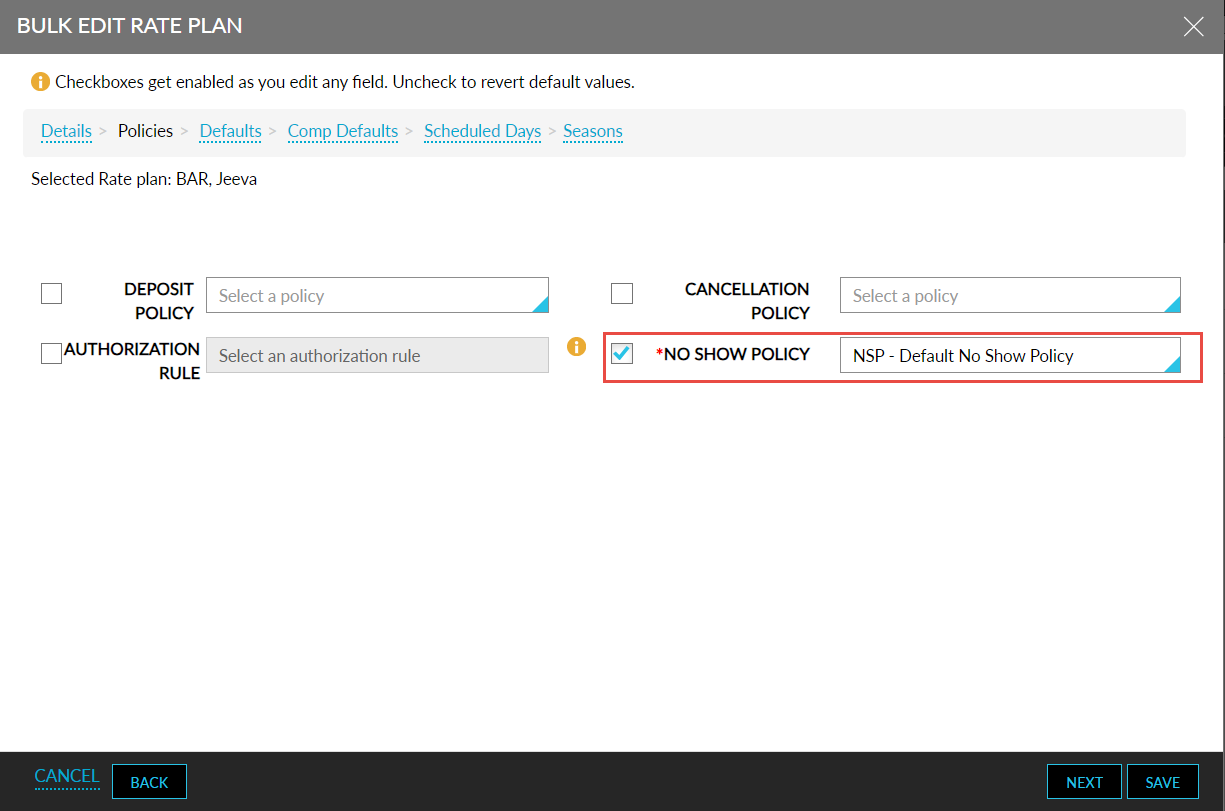
Stay Property Setup Tool
Users can import no-show polices to a property using the Stay property Setup Tool. A column, noShowPolicy, is displayed in the CancellationPolicy tab. When users set the value of a policy as True for this column, the policy is created as a no-show policy. When the column is left blank, the policy is created as a cancellation policy.